Campaigns
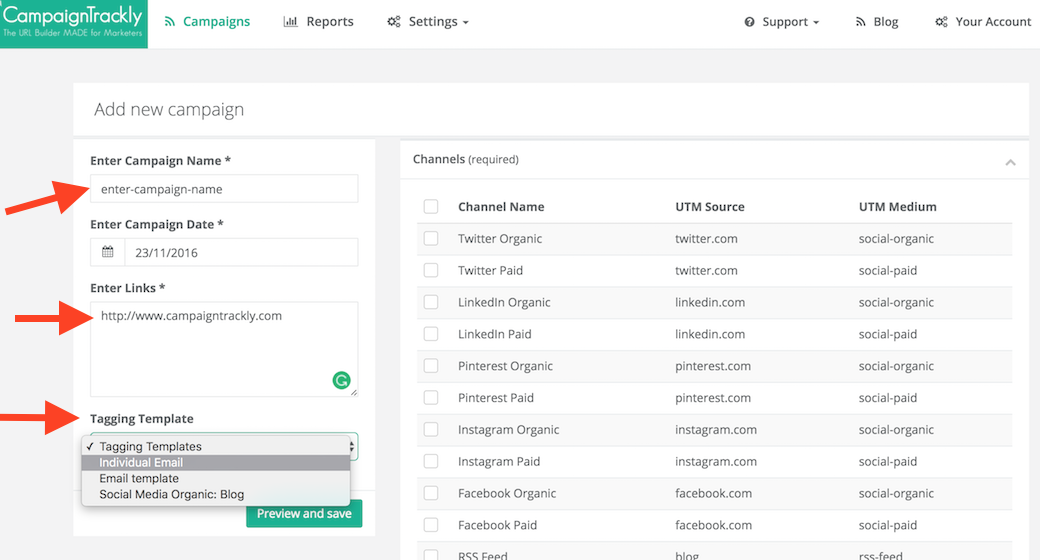
1. Now that you have finalised your Settings, you are ready to create your Campaigns.
- Select “Campaigns from the menu and click the “Add Campaign” button to start entering your campaign name and links.
- Please note that if you are using our Chrome extension, both the link and the title of your page will be automatically parsed by our tool. A Real-life example is available here.
- If you select a tagging template, your links will be processed even faster.
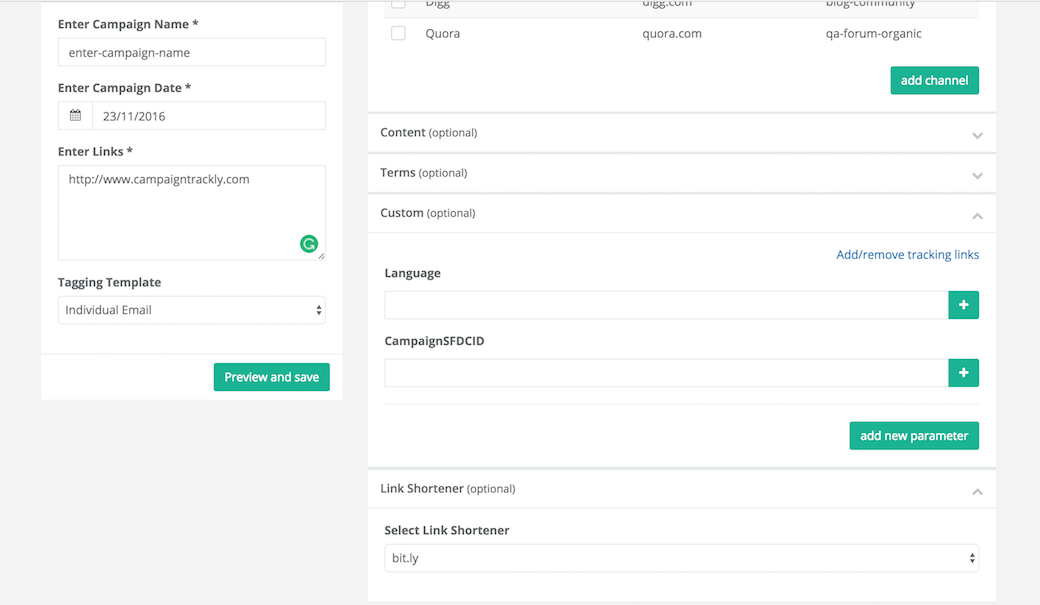
2. The right portion of our friendly wizard has drop-down sections that you can use to edit your information manually if you choose not to use tagging templates.
- We do recommend that you spend time creating tagging templates for your most frequently used scenarios to save time.
- If you have set up your bitly connection, your links will be shortened automatically.
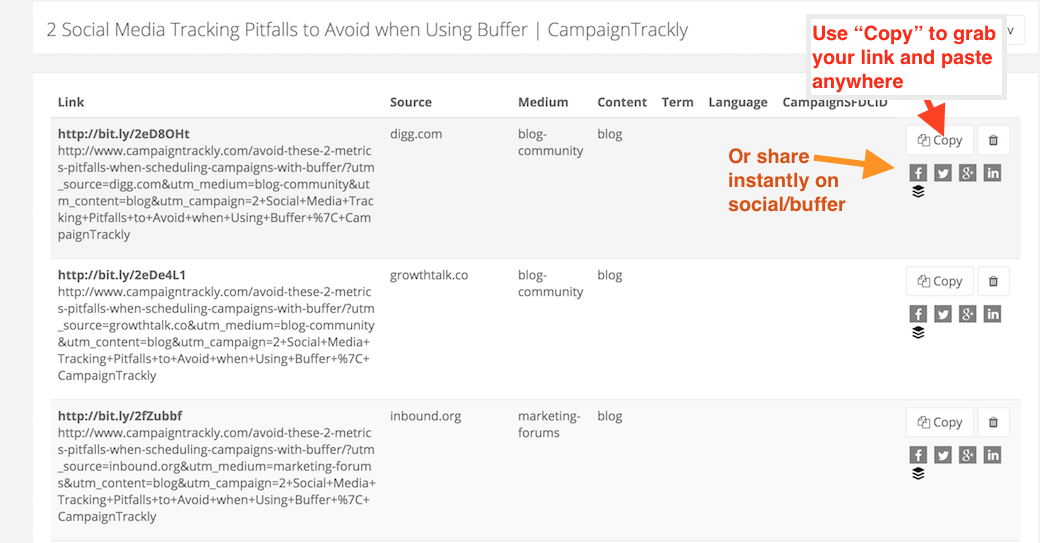
3. Once you have selected/added all the tracking info you need, hit Preview & Save to review your links and hit save if you are happy, or delete/edit your work.

4. Your links should be processed within seconds – the more links you have, the longer it will take, but the tool should respond within 10-20 seconds.
- If it takes longer, please let us know.
- Once the links are ready, you can either share them manually (copy/paste) or auto-share via our social icons.
5. If you want to export all of your links in a .CVS file format to share with your team, just hit the .CSV button available next to your campaign name.
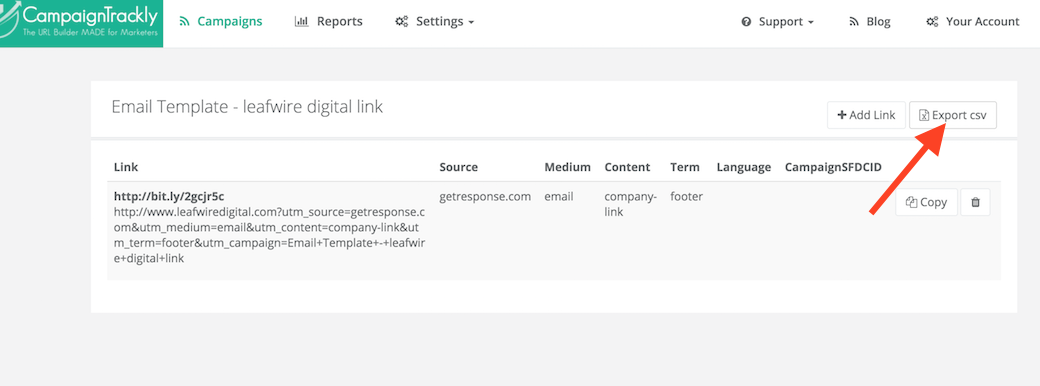
6. Once you are done with this campaign, you can always come back to access, re-use, or edit your links.
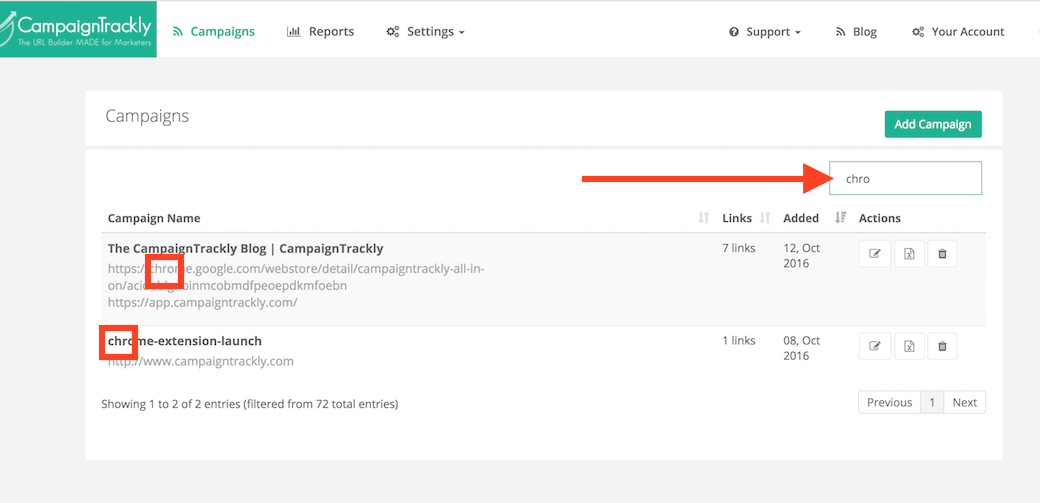
- To do that, find your campaign via the main Campaigns page.
- Click on the Edit Campaign icon to add a new link or re-use your existing links so you don’t need to spend time to create new links over and over.

7. Once into the single campaign view, feel free to copy/share your links again, or if you need a new link, click “Add new link” to add manually a single link.
- The tool will remember your main parameters that will auto-populate as you are typing.
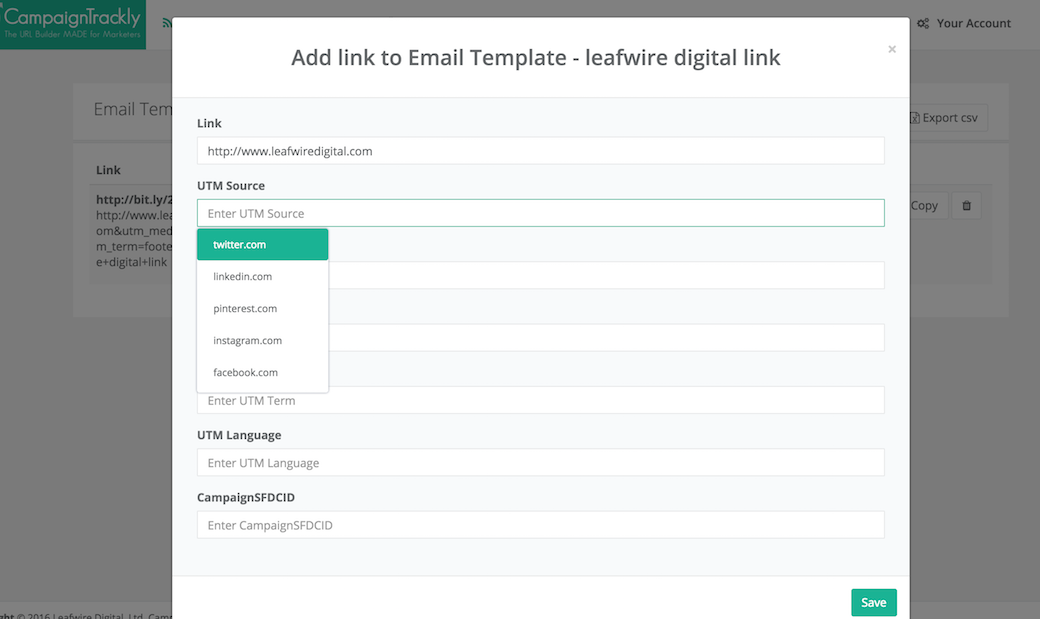
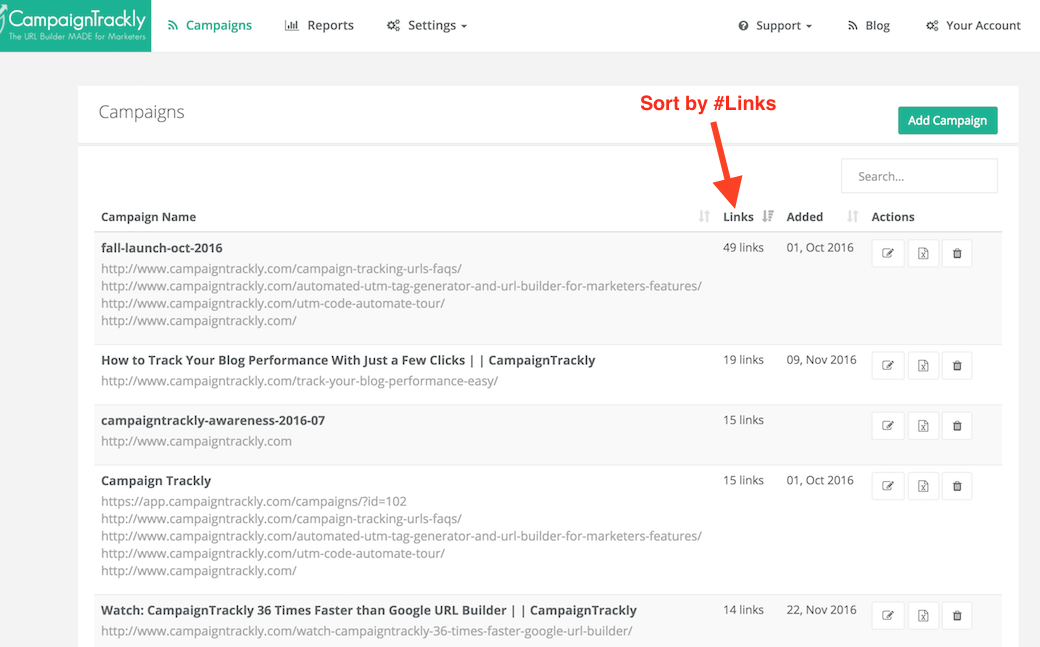
8. How to sort/search your campaigns with a push of a button:
- The tool lets you sort campaigns alphabetically
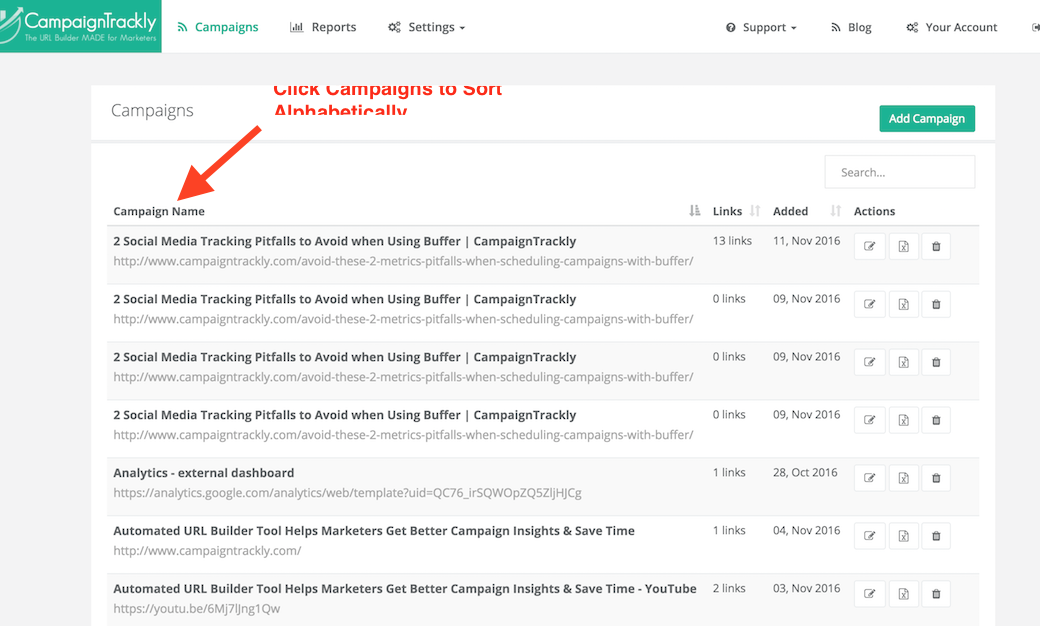
-
Sort campaigns by date – click on Added to sort from oldest to newest and vice versa.
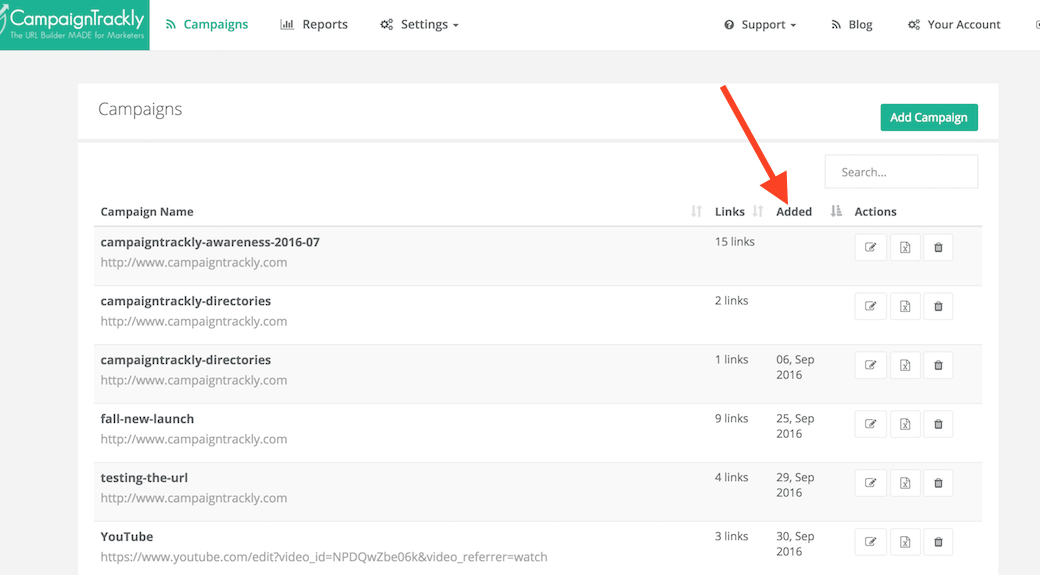
-
Sort campaigns by number of links
-
Use the search field to quickly find a campaign by either name or url address